
Excelのファイル *.xlsxの読み書き catxlsx?
プログラムの名前は仮称です。catxlsxは、Unix系の昔からあるcat(concatnate)に習って、Excelのファイル(拡張子*.xlsx)を連結するユーティリティです。ただつなげるのではなく、カラムの指定キー三つまでを優先指定してソートする合わせ技を実行します。これが便利に使えるというシチュエーションは?前記事のscanproject

で得られた結果のExcelファイルをマシン毎に作ったときに、複数をとりまとめてC++ Builder CEないしMSVCのプロジェクトの在処や、git remote repositoryの有無、有効性等々も含めて把握したい時ですかね?あるマシンでscanprojectを動かした結果の一例が、
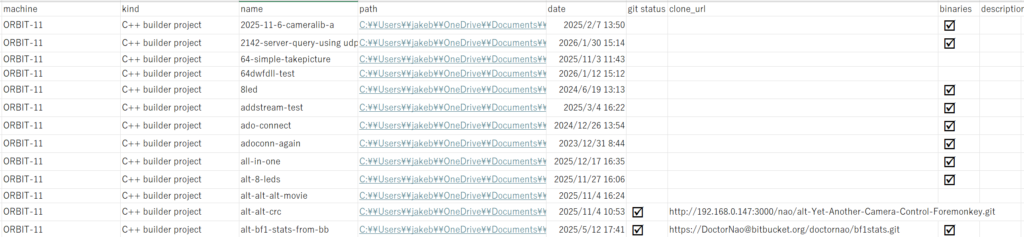
になります。筆者の技術ではexcelの表の一部をテーブルとしてうまくペーストできないので、画像でcut and pasteしました。見にくくて申しわけないですが、項目は左から、
machine kind path date git status clone_url binaries description(未使用)
です。別のマシン上でscan projectすると別のmashine名になります。例えば、

となります。これらのファイルをdrag and dropすると連結して、結果をソートすることまでをconcatnateするわけです。上記の二つはhyperlink欄が長いので縮めてあります。複数のxlsxファイルを読み込ませるやり方は、ファイルを選択しておいて、フォームにDrag and Dropすることにしました。fmx版でのfancyなやり方は、下記の記事で示してあります。
ので、今回は昔ながらのVCLでのMessage_mapを使うやり方を使います。というか、使いました。フォームの外観は、
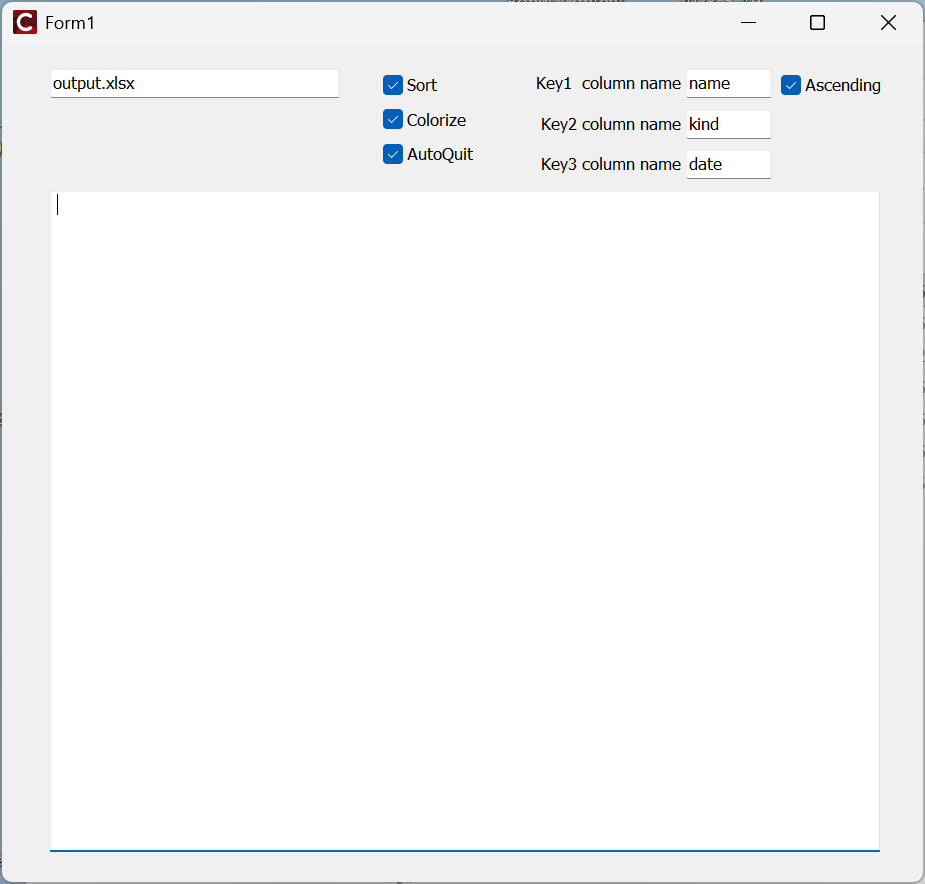
です。ここへ複数のexcelのファイルをdrag and dropします。フォームを提示したので、Unit.hをまず示します。ここにVCLでのDrag and Dropの仕掛けが見えています。
//---------------------------------------------------------------------------

#ifndef Unit1H
#define Unit1H
//---------------------------------------------------------------------------
#include <System.Classes.hpp>
#include <Vcl.Controls.hpp>
#include <Vcl.StdCtrls.hpp>
#include <Vcl.Forms.hpp>
#include <Vcl.ExtCtrls.hpp>
#include <Vcl.Mask.hpp>
//---------------------------------------------------------------------------
class TForm1 : public TForm
{
__published:	// IDE で管理されるコンポーネント
	TMemo *Memo1;
	TEdit *Edit1;
	TLabeledEdit *LabeledEdit1;
	TCheckBox *CheckBox1;
	TCheckBox *CheckBox2;
	TLabeledEdit *LabeledEdit2;
	TLabeledEdit *LabeledEdit3;
	TCheckBox *Colorize;
	TCheckBox *AutoQuit;
private:	// ユーザー宣言
private:
void __fastcall WMDROPFILES(TWMDropFiles Msg);
BEGIN_MESSAGE_MAP
	MESSAGE_HANDLER(WM_DROPFILES,TWMDropFiles,WMDROPFILES)
END_MESSAGE_MAP(TForm)
public:		// ユーザー宣言
	__fastcall TForm1(TComponent* Owner);
};
//---------------------------------------------------------------------------
extern PACKAGE TForm1 *Form1;
//---------------------------------------------------------------------------
#endif
Unit1.cppは長いので、上記のWMDROPFILES他のみを提示します。ソースコード全体ないしプロジェクト全体は希望があればアップします。
void __fastcall TForm1::WMDROPFILES(TWMDropFiles Msg)
{

 int i;
 wchar_t buf[MAX_PATH];

 //ドラッグされたファイルの個数
 //int cnt=::DragQueryFile((HDROP)Msg.Drop,0xFFFFFFFF,NULL,0); NG

 count  = DragQueryFile((HDROP)Msg.Drop,-1,NULL,0);
 for(int i=0;i< count ;i++){
		::DragQueryFile((HDROP)Msg.Drop, i,buf,sizeof(buf));
 // bufにファイル名が入っている
	//Memo1->Lines->Add(AnsiString(buf));
	//Label1->Caption = AnsiString(buf);
	ProcessFile(WideString(buf));
 }
}

void ProcessFile(WideString file)
{   std::string filename;

	//Form1->Memo1->Lines->Add(file);
	filename = AnsiString(file).c_str();
	if( !ends_with(filename,".xlsx"))
		return;
	Form1->Memo1->Lines->Add(file);
	filecount++;
	if( filecount == 1)
		ReadInFullFile(file);
	else
		ReadInAuxFile(file);

	//ShowMessage("total count: " + IntToStr(count) + "filecount " + IntToStr(filecount ) );
}
基本的には上記のProcessFile(WideString file)で拡張子が.xlsxなファイルのみを拾い出して、最初のファイルをベースに保管して置いて、それ以降のファイル(複数可)を読み込んだら、UsedRangeのセルを含む部分をcopyし、最初のファイルにpasteすることで “cat”します。連結が完了したら、カラムを指定してソートします。その実体は、
void ExcelSort(Variant sheet, int sortkeycolumn ,int sortkey2=0, int sortkey3=0)
{
   char sortkey[100];

	range2 = sheet.OlePropertyGet("UsedRange");
	rowcount = range2.OlePropertyGet("Rows").OlePropertyGet("Count");
	columncount = range2.OlePropertyGet("Columns").OlePropertyGet("Count");
	//ShowMessage("rowcount " + IntToStr((int)rowcount));

	sprintf(obuf,"A2:%c%d",'A'+(int)columncount,(int)rowcount);

	sprintf(sortkey,"%c1",'A'+ sortkeycolumn-1);

   //ShowMessage("range: " + AnsiString(obuf) + " sortkey: " + AnsiString(sortkey));

 Variant vSheet = xls_asheet;

Variant vSortFields = xls_asheet.OlePropertyGet("Sort").OlePropertyGet("SortFields");
vSortFields.OleFunction("Clear");

Variant vRange;

vRange = xls_asheet.OlePropertyGet("Range", WideString(sortkey));
vSortFields.OleFunction("Add",
		vRange, // Key:=Range("C2:C573")
		0, // SortOn:=xlSortOnValues,
		order, // Order:=xlDescending,
		0  // DataOption:=xlSortNormal
		);

if( sortkey2 != 0 ){
 sprintf(sortkey,"%c1",'A'+ sortkey2-1);
vRange = vSheet.OlePropertyGet("Range", WideString(sortkey));
vSortFields.OleFunction("Add",
		vRange, // Key:=Range("A2:A573")
		0, // SortOn:=xlSortOnValues
		1, // Order:=xlAscending,
		0  // DataOption:=xlSortNormal
		);
}

if( sortkey3 != 0 ){
sprintf(sortkey,"%c1",'A'+ sortkey3-1);
vRange = vSheet.OlePropertyGet("Range", WideString(sortkey));
vSortFields.OleFunction("Add",
		vRange, // Key:=Range("B2:B573")
		0, // SortOn:=xlSortOnValues
		1, // Order:=xlAscending
		0  // DataOption:=xlSortNormal
		);

}
vRange = xls_asheet.OlePropertyGet("Range", WideString(obuf));
xls_asheet.OlePropertyGet("Sort").OleProcedure("SetRange", vRange); // Range("A1:F573")
vSheet.OlePropertyGet("Sort").OlePropertySet("Header", 0); // xlYes
vSheet.OlePropertyGet("Sort").OlePropertySet("MatchCase", 0); // False
vSheet.OlePropertyGet("Sort").OlePropertySet("Orientation", 1); // xlTopToBottom
vSheet.OlePropertyGet("Sort").OlePropertySet("SortMethod", 1); // xlPinYin
vSheet.OlePropertyGet("Sort").OleProcedure("Apply");

	if( Form1->Colorize->Checked )
		ColorizeColumn();
	vSortFields.OleFunction("Clear");


}
ソートし終わったら、左上のファイル名(output.xlsx)で書き出します。結果(一部)は、

のように得られます。invalid remote repositoryというのは、.git内部のurlが実際には失われているという状況です。remote repositoryを保持しているサーバーが潰れたような場合で、割とあります。


コメント